HTTP Archive Records and Manual Exports with Browser DevTools
Tired of taking screenshots of screenshots? Want to export some images from scrolling feeds with more quality and in bulk?
This blog explains one method for exporting images from a website that has a scrolling feed such as Instagram that may not make it easy to export your images in one swoop, or perhaps you want an alternate technique to export images manually. This is done by exporting a HAR file containing the images after using the in-built DevTools functionality.
Tested as of date of original publication, August 30 2025 with Firefox and Chrome: by saving a HAR file with content recorded in the web browser DevTools network tab it became possible to export some images in bulk, approximately 400+ images per recording.
What are HAR files?
HAR files are records of HTTP activity, typically from a single user experience.
I was able to successfully capture several hundred images in one HAR file and repeat the steps multiple times to capture my entire Instagram feed with over a thousand images. I was then able to export the images with a program called Proxyman in just a few clicks. It is a rough technique but flexible and apparently better than screenshotting images.
The method outlined in this post takes place locally and does not upload a HAR to any online source. Having said, do exercise some caution with HAR files.
HAR files can sometimes contain sensitive data! They can include content of the pages you downloaded while recording as well as cookies, which would allow anyone with the HAR file to attempt to impersonate you. All the information that you submitted while recording: personal details, passwords etc. may potentially be contained inside a HAR file if it is not ‘sanitized’ by default. If needed, you can edit a HAR file in a text editor and redact sensitive information but in general dont upload the HAR file to any online source you do not trust.
Note; Chrome Browser by default ‘sanitizes’ HAR files downloaded from the network tab for some extra preventative security because of this reason, it appears.
This method requires:
- A browser with DevTools such as Chrome, Firefox, Edge, or Safari that can save HAR files with content from browser DevTools
- A program to open the HAR file and export image media locally, such as Proxyman.
Limitations
Known limitations include the size of the scrolling recording or of all assets loaded. In my usage of this to export approximately 1200+ photos from my decade old instagram account, it took me three recordings.
Quality was not guaranteed - it is potentially affected by whatever factors determine what image is served to your browser. This could include viewport differences or other differences that change what the website serves to your browser.
There may be some images you do not intend to capture in the HAR recordings such as icons or background images or images from outside the intended area.
Why this method works
Quite simply all the browser is remembering doing is HTTP requests it made and received, upto some generous memory and browser limits that may exist. These requests are able to made into a format the browser can export as a specific type of file called a HAR file.
Steps for exporting bulk images
1: Visit
Visit the website, for example, your instagram main feed. Open the Browser Dev Tools and go to the Network Tab. Each browser is very similar, but slightly different.
Filter by Image Media to capture only image media if desired. You may need to click a play button to start recording network activity depending on the DevTools or it will already be capturing images open opening the tab.
2: Prepare
Refresh the page and notice the network graph beginning to collect data as images load. You can click “IMG” to filter to just see images that loaded when you refreshed. These are now being stored in the browser memory as long as you continue to record and do not clear the recording.
3: Scroll/Record
Scroll the feed. Notice the requests number increase and number of images increase in your network recording. Continue scrolling until you feel you have captured enough images or all the images you want.
My experience with this method has been that basically if you as a human saw the image load it should definitely have been captured into the network log whether or not its visible on screen at the end or for very long.
Quality may vary but it seems to capture what is loaded through HTTP as is expected.
4: Export HAR for local use
See: CanIDevTools guides to Chrome, Firefox, Safari, and Edge for how to import and export HAR files
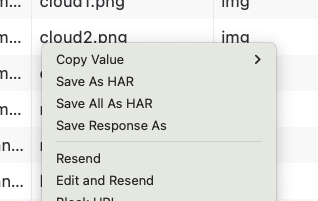
Firefox: Right click “Save All as HAR” on the network tab requests to name and save a HAR file with all the content you recorded.
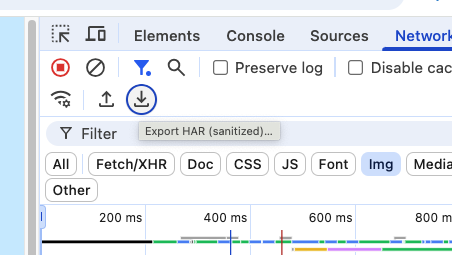
Chrome: Click the downfard facing arrow download icon to download a sanitized HAR file
5: Open HAR, Export Response Bodies
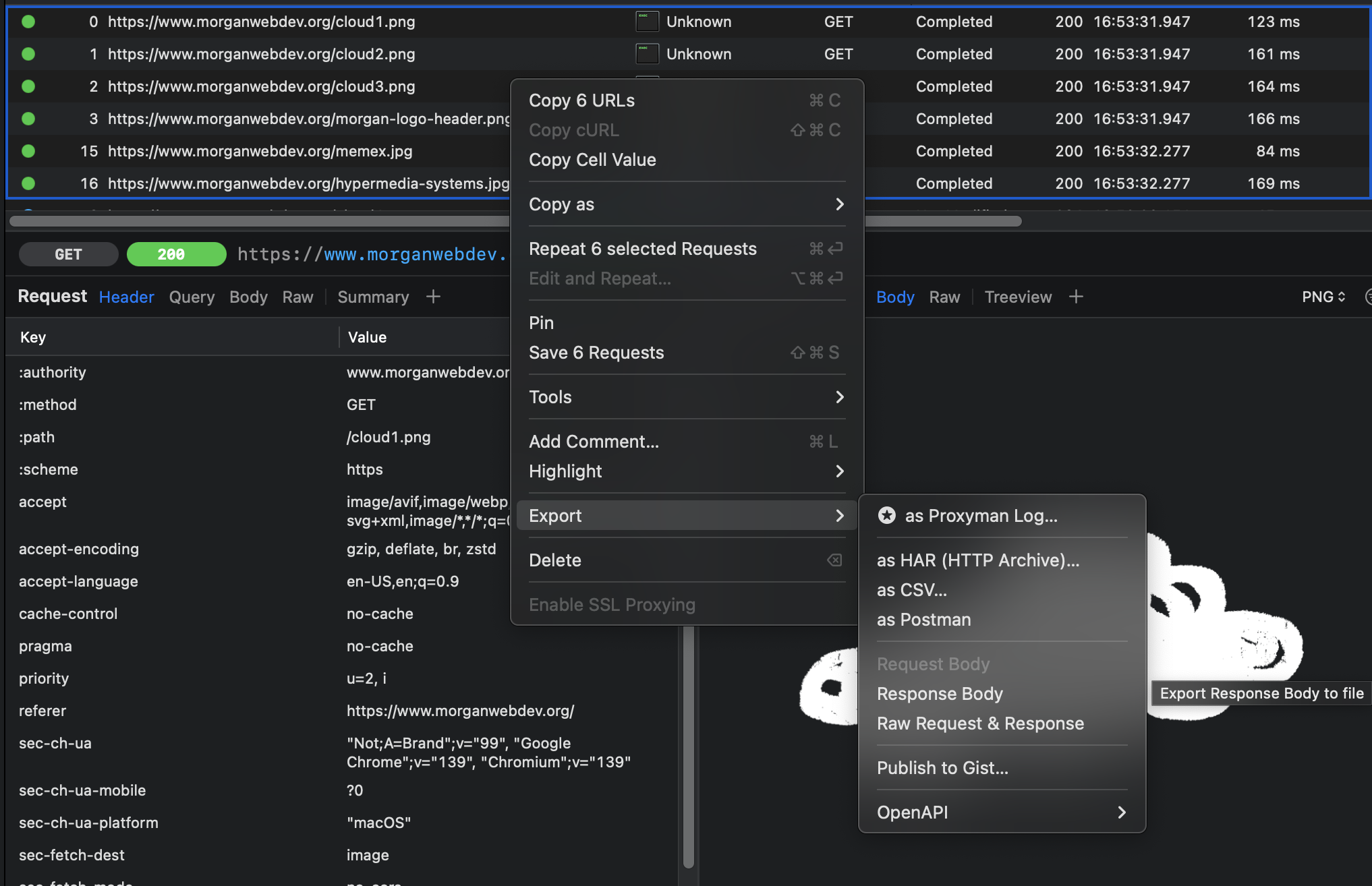
Open the HAR file with Proxyman or similar tool. Filter by Media in the top menu, and then select all of the images in the app with CMD+A or highlight click to select all. Right click to “Export Response Body” to export all of the images to a folder.
6: Celebrate
It is a bit of a rough method but a handy trick that I am hoping to refine. Perhaps consider deleting the HAR file when finished after this export procedure just to keep things tidy and more organized.